webhook_exec_ext

Webhook Executor
A powerful Chrome extension that allows you to set up and execute webhooks with dynamic variables based on the current webpage.

Features
- ✅ Multiple Webhooks: Configure unlimited webhooks
- ✅ Popup UI: Quick access to all webhooks from the extension icon
- ✅ Dynamic Variables: Use variables like
{page_url},{page_title},{page_domain}in your webhooks - ✅ Context Menu Integration: Execute webhooks via right-click menu
- ✅ Link Support: Right-click on links to send link URL instead of page URL
- ✅ Flexible Configuration: Set URL, headers, params, and payload for each webhook
- ✅ Real-time Variable Substitution: Variables are replaced with actual values when webhook executes
- ✅ Multiple HTTP Methods: Support for GET, POST, PUT, PATCH, DELETE
- ✅ URL Preview: See exactly what URL will be called with example data
- ✅ Loading Messages: Custom loading text shown during webhook execution
- ✅ Response Validation: Configure response checks to verify successful execution
- ✅ Visual Popups: Beautiful in-page notifications for loading and success states
- ✅ Dark Mode UI: Easy on the eyes with a modern dark interface
- ✅ Backup & Restore: Export and import your webhook configurations easily
Screenshots
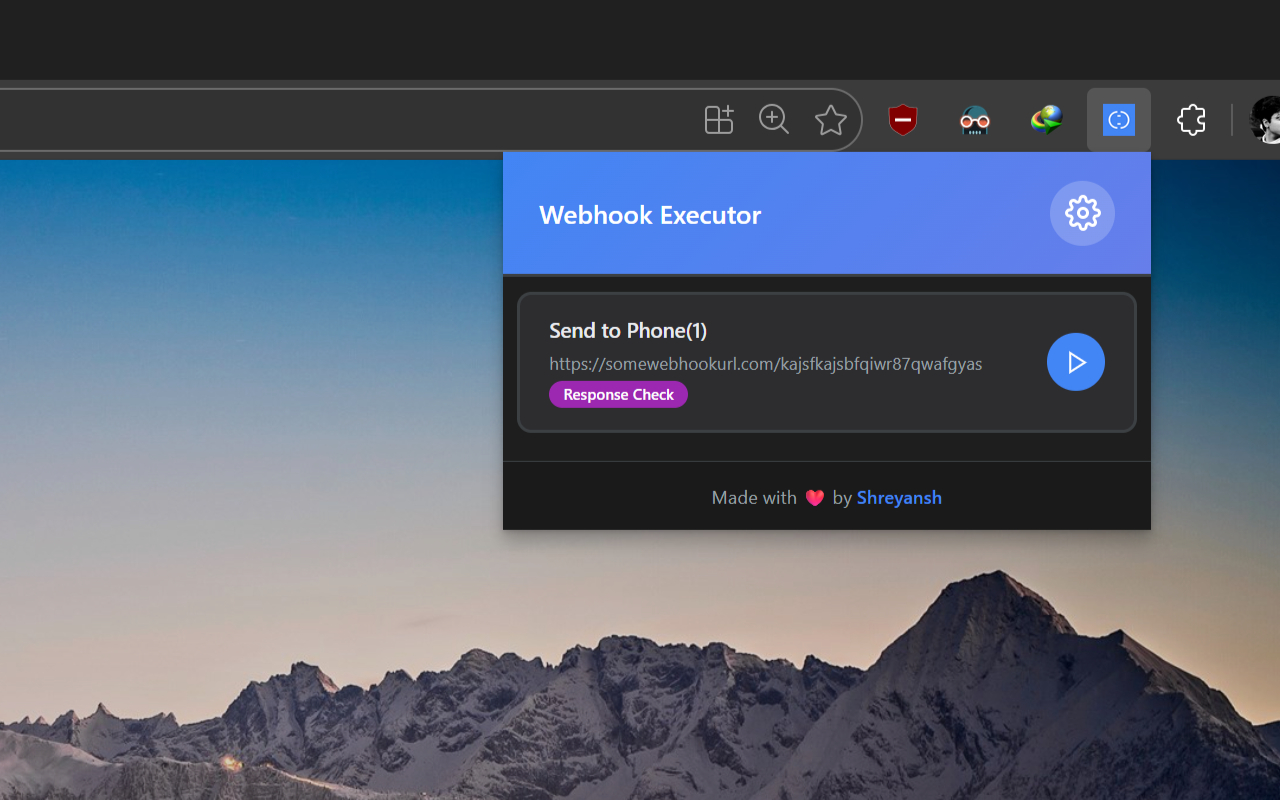
Extension Popup
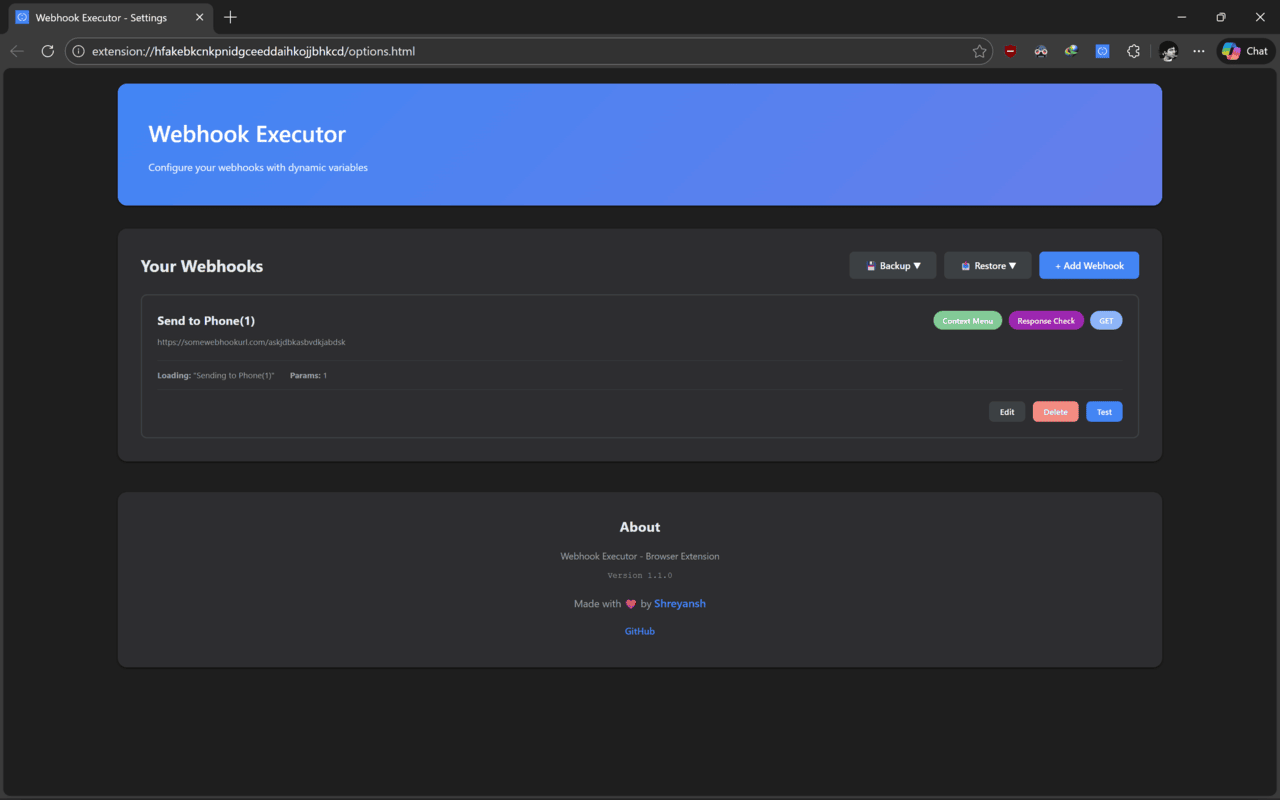
Extension Settings
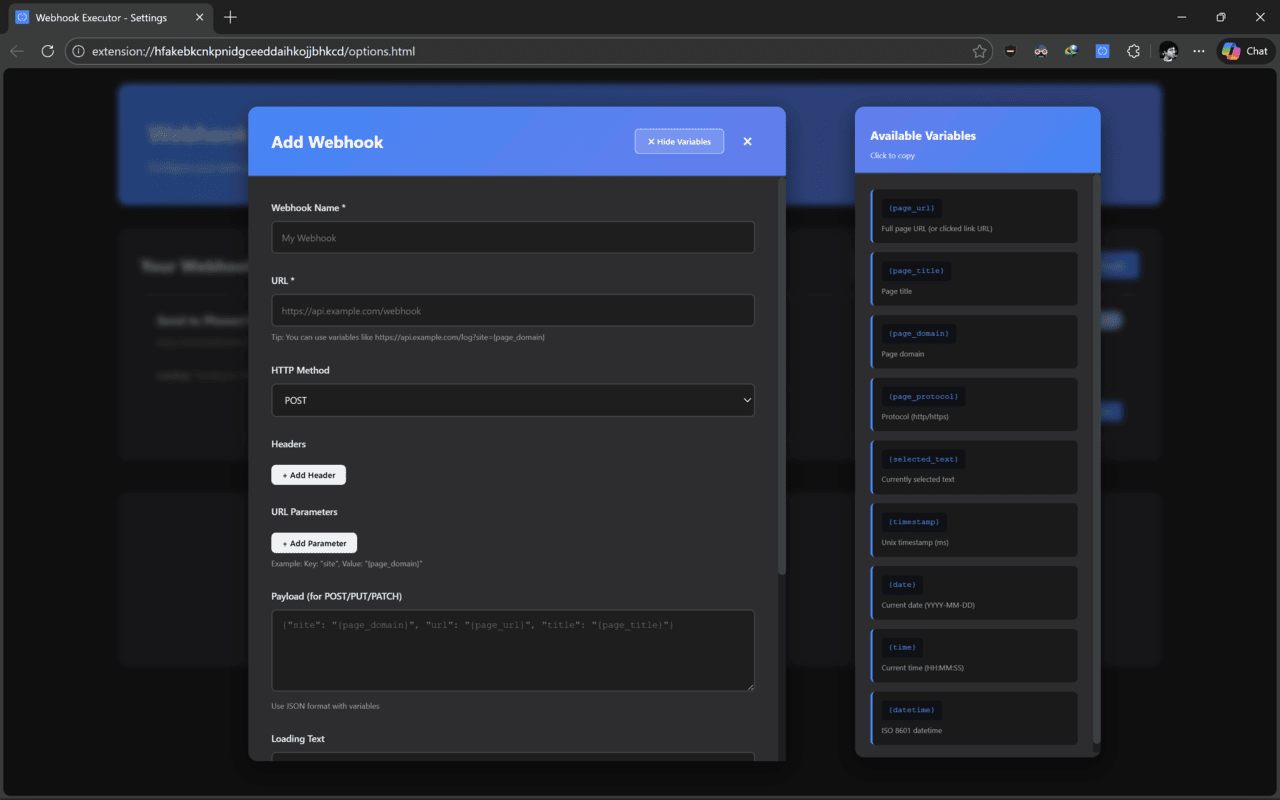
Webhook Configuration
Installation
Micorosft Edge

Chrome (Manual Installation)
- Open Chrome and go to
chrome://extensions/ - Enable “Developer mode” (toggle in top-right corner)
- Click “Load unpacked”
- Select the
mdExtensionfolder - The extension will now be installed!
Usage
Setting Up Webhooks
- Click the extension icon and select “Options” (or right-click on the extension icon → Options)
- Click “+ Add Webhook” button
- Fill in the webhook details:
- Name: A friendly name for your webhook
- URL: The webhook endpoint (can include variables like
https://api.example.com/log?url={page_url}) - HTTP Method: Choose between GET, POST, PUT, PATCH, DELETE
- Headers: Add custom headers if needed
- URL Parameters: Add query parameters (e.g.,
url: {page_url},domain: {page_domain}) - Payload: JSON payload for POST/PUT requests
- Loading Text: Custom message shown while webhook executes (default: “Executing webhook…”)
- Enable Response Check: Validate webhook response to determine success
- Response Type: Choose how to validate (Status Code, Text Contains, JSON Path)
- Expected Value: What value to check for
- Show in Context Menu: Check this to add webhook to right-click menu
- URL Preview shows exactly what will be sent with example data
- Click “Save Webhook”
Response Check Options
Configure how to validate if your webhook executed successfully:
Status Code
Check if HTTP status code matches expected value.
Type: Status Code
Value: 200
Webhook succeeds only if response status is 200.
Text Contains
Check if response body contains specific text.
Type: Text Contains
Value: success
Webhook succeeds if response body contains the word “success”.
JSON Path
Check if a specific JSON field exists or has a value.
Type: JSON Path
Value: status
Checks if response.status exists. For nested values use dot notation: data.result.status
Available Variables
Use these variables in your webhooks using the {var_name} syntax:
| Variable | Description | Example |
|---|---|---|
{page_url} |
Full page URL (or clicked link if on link) | https://google.com/search?q=test |
{page_title} |
Page title | Google |
{page_domain} |
Page domain | google.com |
{page_protocol} |
Protocol | https |
{selected_text} |
Currently selected text | Hello World |
{timestamp} |
Unix timestamp (ms) | 1738786800000 |
{date} |
Current date | 2026-02-06 |
{time} |
Current time | 14:30:45 |
{datetime} |
ISO 8601 datetime | 2026-02-06T14:30:45.123Z |
Note: When you right-click on a link and execute a webhook, {page_url} will contain the URL of the link you clicked, not the current page URL.
Example Webhook Configuration
Example 1: Send Current Website to MacroDroid
Name: Share Website
URL: https://trigger.macrodroid.com/your-webhook-id
Method: POST
Params:
  - url: {page_url}
  - title: {page_title}
Payload:
{
  "url": "{page_url}",
  "title": "{page_title}",
  "domain": "{page_domain}",
  "timestamp": "{timestamp}"
}
Loading Text: Sharing to MacroDroid...
Response Check: Enabled
  - Type: Status Code
  - Value: 200
Show in Context Menu: ✓
Example 2: Log Page Visit with Validation
Name: Log Visit
URL: https://api.example.com/log
Method: POST
Headers:
  - Authorization: Bearer YOUR_TOKEN
Payload:
{
  "url": "{page_url}",
  "domain": "{page_domain}",
  "title": "{page_title}",
  "date": "{datetime}"
}
Loading Text: Logging page visit...
Response Check: Enabled
  - Type: JSON Path
  - Value: success
Show in Context Menu: ✓
Note: The URL Preview feature will show you exactly what URL will be called before you save!
Executing Webhooks
Via Extension Popup:
- Click the extension icon in the Chrome toolbar
- You’ll see a list of all configured webhooks
- Click the ▶️ play button next to any webhook to execute it
- Click the ⚙️ settings icon to configure webhooks
Benefits:
- Quick access to all webhooks
- No need to right-click on pages
- Visual list with webhook details
- One-click execution
Via Context Menu:
- Right-click anywhere on a webpage
- If only one webhook has “Show in Context Menu” enabled:
- The webhook will appear directly in the context menu
- If multiple webhooks are enabled:
- Look for “Webhooks” submenu
- Select the webhook you want to execute
Right-Click on Links:
When you right-click on a link and execute a webhook:
{page_url}will contain the link’s URL instead of the current page URL- This is perfect for sharing specific links or processing URLs you find on pages
- Example: Right-click on a YouTube video link → webhook receives that video URL
Visual Feedback:
When you execute a webhook, you’ll see beautiful in-page popups:
- Loading State (blue): Shows your custom loading text
- Example: “⏳ Sharing to MacroDroid…”
- Success State (green): Confirms successful execution
- Example: “✓ Share Website: Success ✓”
- Appears after response validation (if enabled)
- Error State (red): Shows if something went wrong
- Example: “✗ Error: Network request failed”
Popups appear in the top-right corner and auto-dismiss after 3 seconds.
Testing Webhooks:
- In the Options page, click the “Test” button on any webhook
- This will show you what data will be sent with example values
- Preview the loading text and response check configuration
Quick Access
Extension Popup (New!)
Click the extension icon to see a beautiful popup with:
- List of all configured webhooks
- One-click execution with ▶️ play buttons
- Direct access to settings via ⚙️ icon
- Dark mode interface
- Quick and convenient - no need to right-click!
Context Menu Integration
Context Menu Behavior:
- 0 webhooks enabled: No context menu items
- 1 webhook enabled: Shows directly as “Webhook Name”
- 2+ webhooks enabled: Shows under “Webhooks” submenu
Backup & Restore
Keep your webhook configurations safe and transfer them between browsers or devices.
Creating a Backup
In the Options page, click the 💾 Backup dropdown button to see two options:
- 📋 Copy JSON - Copies your webhook configuration to clipboard as JSON
- Perfect for quick sharing or temporary storage
- Includes all webhook settings and metadata
- 💾 Download File - Downloads a backup file to your computer
- Named with current date:
webhook-executor-backup-2026-02-11.json - Safe storage for long-term backup
- Named with current date:
Restoring from Backup
Click the 📥 Restore dropdown button to see restore options:
- 📄 Paste JSON - Restore from JSON in your clipboard
- Quick restore if you copied JSON earlier
- Validates JSON format before restoring
- 📁 Upload File - Select and restore from a backup file
- Browse and select your previously downloaded backup file
- Supports
.jsonfiles only
Important Notes:
- Restoring will replace all current webhooks with the ones from the backup
- You’ll see a confirmation dialog showing how many webhooks will be restored
- The backup includes webhook name, URL, method, headers, parameters, payload, response checks, and all settings
- Backup format includes export date and version for easy tracking
Tips
- Variable Substitution: Variables work in URL, headers, params, and payload
- URL Preview: Use the preview to verify your URL is correct before saving
- Loading Text: Customize loading messages to match your action (“Saving to database…”, “Sending notification…”, etc.)
- Response Validation: Enable response checks to ensure webhooks actually succeeded
- Use status code 200 for simple success checking
- Use JSON path for APIs that return structured responses
- Use text contains for simple text-based responses
- Testing: Always test your webhooks before relying on them
- JSON Payload: Make sure your payload is valid JSON when using POST/PUT
- Headers: Add
Content-Type: application/jsonif your API requires it - Selected Text: Use
{selected_text}to capture highlighted text on the page - Debugging: Check Chrome DevTools Console for detailed webhook execution logs
Troubleshooting
Webhook not executing:
- Check that the URL is correct
- Verify webhook has “Show in Context Menu” enabled
- Check Chrome DevTools console for errors
Variables not working:
- Make sure you’re using the correct syntax:
{var_name} - Variable names are case-sensitive
- Some variables might be empty depending on the page
Context menu not showing:
- Ensure at least one webhook has “Show in Context Menu” enabled
- Try refreshing the page after enabling webhooks
- Reload the extension from
chrome://extensions/
Development
File Structure
mdExtension/
├── manifest.json          # Extension configuration
├── background.js          # Service worker for context menus and webhooks
├── content.js             # Content script for page data
├── popup.html             # Extension popup UI
├── popup.js               # Popup logic
├── popup.css              # Popup styling
├── options.html           # Options page HTML
├── options.js             # Options page JavaScript
├── options.css            # Options page styling
├── icon16.png            # 16x16 icon (required)
├── icon48.png            # 48x48 icon (required)
├── icon128.png           # 128x128 icon (required)
└── README.md             # This file
Privacy
This extension:
- Only accesses page data when you execute a webhook
- Stores webhook configurations locally in Chrome storage
- Only sends data to URLs you explicitly configure
- Does not collect or transmit data to third parties
For a complete privacy policy, see PRIVACY.md.
License
Free to use and modify for personal projects.
Support
For issues or questions, please check:
- The troubleshooting section above
- Chrome DevTools console for error messages
- Verify your webhook endpoint is working correctly